
An upgrade to Node.js may work locally on a developer machine, but could fail in GitHub Actions and even fail differently within a Docker image. You may see an error about an invalid engine, inability to load a native module, or fail in production. These are all indicators of the different layers in the runtime environment. The version number will rarely solve all of these issues.
Node.js version 26 became a long-term support version on 28th October 2026, with the release of v26.13.0 (Lithium). Whilst this is an important milestone for teams who want to standardise on supported major versions, there were no major changes to APIs. As noted in the release announcement, "Other than some metadata to indicate this is an LTS release, there are no changes to Node.js from 26.12.1". The changes to behaviour will have occurred between the upgrade from Node 22/24, Node 25 and Node 26.
Check the Node and npm versions in every environment
Ensure you know what version of Node you're running in each environment. Don't assume that because you've tested locally it will be the same in the hosted CI runner or Docker image. You can run:
node --version
npm --version
node -p "JSON.stringify({platform:process.platform, arch:process.arch, versions:process.versions}, null, 2)"
npm ls --depth=0
Run these commands locally, in GitHub Actions, in your development Docker image, and in production. If you're running a serverless deployment, ensure you know what runtime your hosting provider is actually supporting. Some platforms will provide Node major versions in a staggered way. Just changing the version in package.json may not change the runtime chosen in the hosting dashboard.
Take a brief note of any build scripts, native dependencies, test runners, packages with node-gyp pinned, and external libraries with engines. Take note of any code that uses deprecated Node methods, old http methods, or test utilities relying on V8 behaviour. Have a copy of the lockfile as-is.
What changed in Node.js 26
Node.js 26.0.0 introduced the Temporal API (enabled by default), V8 was upgraded to version 14.6 and Undici to version 8. There were also removals and deprecations. Some examples of removals include http.Server.prototype.writeHeader() and legacy private _stream_ entries. Any code using these will need to be updated.
As per the LTS notes for version 26.13.0, official Linux binaries have been linked with libatomic since Node 25. This may mean the library needs to be installed on some distributions. This will cause an error like libatomic.so.1: cannot open shared object file before any JavaScript is run. If the package is expecting a system library to be present and it's missing, you won't be able to resolve this by debugging imports in your application. This will be particularly important if you're using a minimal base image.
The official archive shows that npm 11.20.0 is included with Node 26.13.0. This does not mean all npm packages will require npm 11, but you should ensure you're aware of any changes to npm behaviour and lockfile handling. Always ensure you're using the correct version of npm in your CI. Users can install/override npm regardless of Node.js.
Upgrade without changing everything at once
To keep your application code and dependencies consistent, create a branch, keep the lockfile as-is, and set your local Node to 26. Run your project without updating any of your packages to their latest versions. If you can install and run your tests, you can consider updating your dependencies.
node --version # Ensure v26.x is being used
npm ci # Use the committed lockfile
npm test # Run your projects test command
npm run build # Run your projects build command
If you're getting an error during npm ci, don't automatically run npm install and commit the large diff. Ensure you know why the lockfile and package are not matching. Has the package changed without a lockfile update? Has the lockfile been generated using an incompatible workflow? Is a dependency requiring a different runtime? npm ci is designed to fail in some situations to prevent the lockfile from being overwritten. This is useful in CI.
If you're getting an EBADENGINE error from a dependency, ensure you know the exact engines.node constraint and version of the package. The package may not have support for Node 26 yet, even though it works. Or it could be an abandoned package and actively not supporting newer versions. If the package is used for authentication, native processing, or cryptography, don't force install it.
EBADENGINE may not be a failed install. npm typically treats engines as a guideline. If the version of the package is incompatible, it will show a warning. If your organisation/project has engine-strict enabled, this will fail. ERESOLVE typically indicates an issue with resolving dependencies/peer dependencies, not a Node.js API being rejected. Ensure you know what error you're getting.
npm pkg get engines
npm config get engine-strict
npm config get legacy-peer-deps
npm config get install-links
If the package is rejecting Node 26, ensure you know what constraint it has in the package.json, and check the maintained release notes. If you're getting a clean install error, but the lockfile was generated using --legacy-peer-deps or --install-links, npm will require you to use the same install settings. Ensure you have a .npmrc file with the legitimate settings for your project. Don't add random force flags to your CI. An engine warning, peer dependency not being satisfied, or lockfile inconsistency will all require different fixes. See the npm ci documentation for why the install flag is required.
When native dependencies stop working
Some packages will have native binaries that are selected based on the Node version, platform, architecture, or ABI. Some will compile during install. If you've changed your runtime, a package may no longer have a compatible prebuilt binary and attempt to compile locally. This could fail as the compiler, Python, system headers, or addon code is not compatible.
Ensure you know what module is causing the failure. Check if the version of the module supports Node 26 and your OS/architecture. Only run:
npm rebuild
npm ls --depth=0
If you have native add-ons, npm rebuild can help if the source code supports the target version and you have the correct dependencies. However, if the binary is incompatible or the module is abandoned, it will not help. Try to update to a maintained package or use a supported Node version.
On Linux, ensure you know if the failure is due to the missing libatomic runtime library (as mentioned in the LTS announcement) or a node-gyp error. The error will be different to resolve. When troubleshooting, ensure you know what the exact first error is, and what the image distribution is.
Quickly check your environment:
node -p "JSON.stringify({node:process.version, abi:process.versions.modules, napi:process.versions.napi, platform:process.platform, arch:process.arch}, null, 2)"
\# Linux only - run in the image/container where the error occurs:
uname -m
ldd "$(command -v node)" | grep -E 'libatomic|not found'
The last command will only work on Linux systems with ldd. Some minimal images may not have this. Other platforms will have different tools. If Node isn't starting due to missing libatomic.so.1, ensure you know what system packages are installed in the image. Don't try to reinstall your npm dependencies. If Node is starting, but you're getting an error when trying to require() or import a native addon, ensure you know what version, architecture, and Node-API/ABI support the addon has. Addons built using stable Node-API may behave differently to those using a specific V8 ABI. This will give you evidence, but doesn't guarantee the package supports Node 26.
Check which Node version GitHub Actions actually runs
If your workflow is using the default runner image, you may not be using the version you expect. Ideally you should set up a step to explicitly set your Node version. Use a supported version of the setup action and pin it. Below is an example using a documented 2026 action major. For production, pin the approved commit SHA of the action and ensure your runner meets the minimum version.
name: Node 24 and 26 compatibility
on:
  push:
  pull_request:
permissions:
  contents: read
jobs:
  test:
    runs-on: ubuntu-latest
    strategy:
      fail-fast: false
      matrix:
        node: ['24', '26']
    name: Test Node ${{ matrix.node }}
    steps:
      - uses: actions/checkout@v7
      - uses: actions/setup-node@v7
        with:
          node-version: ${{ matrix.node }}
          cache: 'npm'
      - run: node --version && npm --version
      - run: npm ci
      - run: npm test
      - run: npm run build
This is just an example. Assuming you have test and build scripts, and a committed root package-lock.json. Adjust the steps and cache path according to your setup. Compare the error logs from both matrix jobs. If you're using self-hosted runners, ensure you're using a compatible Actions runner with setup-node@v7. If you're getting an error when trying to set up Node 26 using setup-node@v7, check the minimum runner version published with the action. If the workflow is sensitive, ensure you're aware of the risk of cache poisoning. Set package-manager-cache: false. If you're not using caching, don't include it. If you're getting an error with the cache step, ensure you know if there's a committed npm lockfile, and if the caching is set up correctly for the package-manager. If you're unable to install Node 26, ensure you know if there's a compatibility issue with the action version, runner network access, and if the requested version is available for that architecture. Just because the setup-node step is successful, doesn't mean the Docker build steps later in the job will use Node 26. They may be using a separate container.
Keep the Node 24/26 matrix whilst migrating. If both jobs are failing at the same point, it's more likely to be a common dependency or recent change in the application. If only 26 is failing, ensure you know what the first differing error is, and reproduce it locally using the same lockfile and OS. Don't remove the older job until you've checked the production builds and rollback. The Node version selected using setup-node in a job does not automatically affect a separate docker build stage.
Why local builds and GitHub Actions behave differently
Node.js 26 Migration Matrix - Comparing local, CI, Docker and production runtime versions. Typical failures.
Ensure versions match and dependencies are compatible.
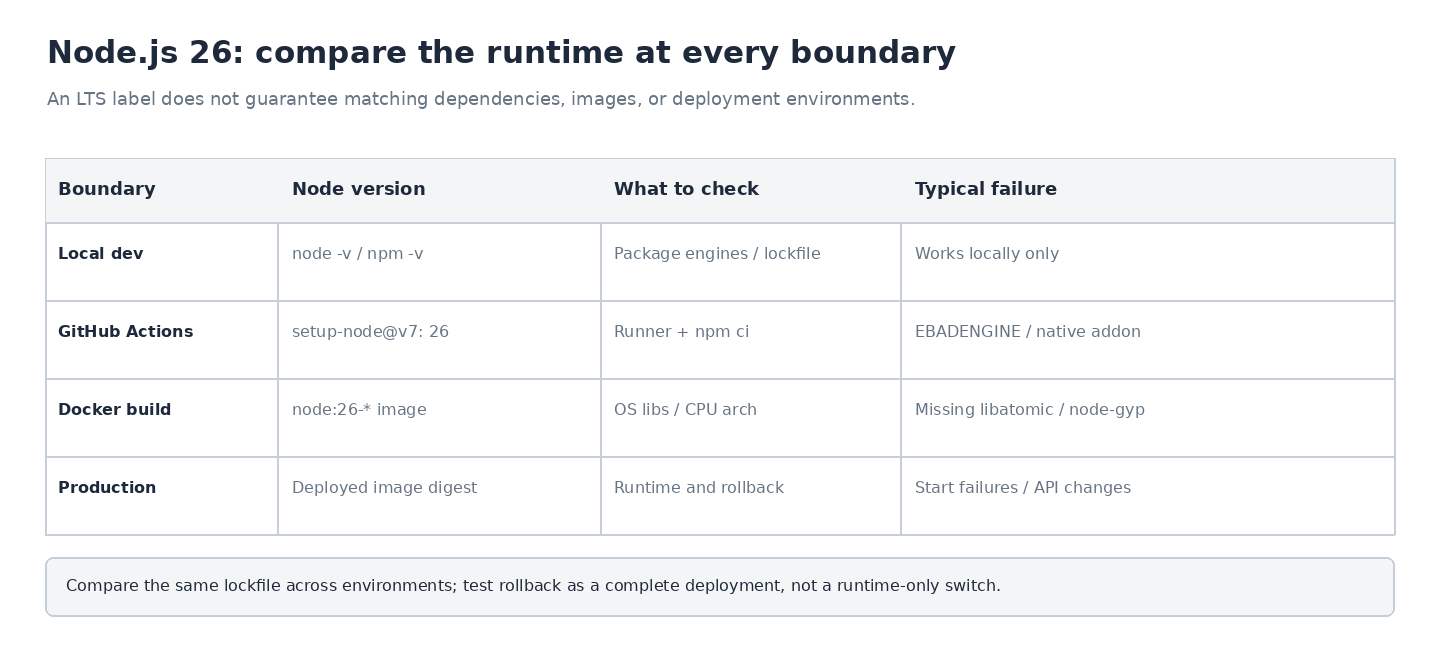
| Symptom | Likely Cause | Evidence |
|---|---|---|
| Passes locally but fails to install in CI | Different Node/npm/lockfile versions | Versions, npm ci output |
| EBADENGINE | Package engine restrictions | Package name, engines |
| node-gyp/native binary error | Build tools, ABI, architecture | First native error, runner OS |
| libatomic.so.1 missing | Linux loader dependency | Distribution, image, linked library |
| Different behaviour in tests | API/Runtime behaviour change | Minimal reproduction, stack trace |
| Container runs locally but not in production | Image/platform/entrypoint mismatch | Image digest, runtime logs |
Before making any code changes, ensure you know what stage is failing. If npm ci is failing, investigate the dependency resolution/installation. If installation is passing but tests are failing, ensure you know what assumptions your tests are making, and what has changed in the runtime. If the container isn't starting Node at all, investigate system libraries and architecture. This will ensure you don't waste time trying to fix a missing OS dependency and it becomes a "JavaScript bug" that takes a week to find.
Node 26 in Docker builds and runtime images
Your Dockerfile may still be using an older Node base image. Multi-stage builds can also be used to build native modules on one distribution and run them on another. Ensure your build and runtime images are intentionally the same.
FROM node:26-bookworm-slim AS build
WORKDIR /app
COPY package.json ./
RUN npm ci
COPY . .
RUN npm run build
FROM node:26-bookworm-slim AS production-deps
WORKDIR /app
COPY package.json ./
RUN npm ci --omit=dev
FROM node:26-bookworm-slim
ENV NODE_ENV=production
WORKDIR /app
COPY --from=production-deps /app/node_modules ./node_modules
COPY --from=build /app/dist ./dist
COPY package.json ./
USER node
CMD ["node", "dist/server.js"]
This is just an example. Assuming your application produces an executable dist/server.js file. Adjust the directories and CMD according to your framework. Ensure you have a reviewed .dockerignore file to exclude local node_modules, .env files, credentials, etc. Production dependencies are installed separately. Don't copy development dependencies and the whole project. If your native addons require OS libraries, ensure your build and runtime environments are compatible. Ensure they're present in the final image. Never put any secrets inside your image. Supply them at deployment time. Pin approved base image digests after testing.
If your image is failing due to an architecture error, ensure you know if you're building for linux/amd64, linux/arm64 or another platform. Cross platform builds can download different native packages. Just because you've successfully built your application on Apple Silicon locally, doesn't mean it will be the same on a Linux x64 runner.
Removed APIs and runtime behaviour changes
If you're getting a runtime error relating to writeHeader(), ensure you're using the correct writeHead() method and check the header logic. If a library is importing private _stream_ modules, ensure you're upgrading the library or replacing the internal dependency. Don't make changes to files in node_modules as this will be lost during the next clean install.
If your application relies on HTTP requests, streamed responses, date/time, URL encoding, TLS connections, run some targeted tests. If you are using the Temporal API, and it is not causing any issues then there is no need to change any date logic. If it helps meet your requirements and your deployment target supports it then go ahead. Keeping your feature adoption separate from your runtime upgrade will make it easier to diagnose any regressions.
Use the Yoryantra GitHub Actions YAML Validator to ensure your amended workflow has the correct static structure. Use the Environment Variable Diff Checker to ensure your sanitised environment variables are the same locally and in CI. Use the JSON Validator to ensure your package.json isn't malformed. None of these will execute your install, make sure your provider provides a runtime, and make sure your native modules are compatible. They will help reduce any avoidable syntax and configuration errors.
Test Node 24 and 26 side by side
Whilst migrating, create a small test suite to test the boundary of your application where it's using Node directly. This could be HTTP responses, environment access, file paths, modules, and any native dependencies. Run these using the old and new major versions. Ensure you're using the same lockfile. If only Node 26 is failing, you can narrow down the issue to the failing library/API call. If both are failing, investigate a common dependency or recent change in the application.
Even if your tests are passing, pay attention to the warning output. If you have a built server entry point in your application, run your tests with node --trace-deprecation dist/server.js to show the stack trace of any deprecations. You can also use --trace-warnings to show any other process warnings. Ensure you're running in a safe development environment and review your logs for any sensitive information. Ensure you know if the warning is coming from your application or a third party package. Prioritise runtime deprecations with a documented removal path. Don't silence all the warnings in CI - this will make it harder to spot a real issue with future compatibility. However, don't treat every warning as an issue without understanding what impact it will have and if the dependency maintainer has a fix.
When Docker fails before Node starts
Assume your Node 24 GitHub Actions job is passing, and your Node 26 job is building successfully. However, when deployed to Linux, your image is exiting with an error of libatomic.so.1: cannot open shared object file. This is not an EBADENGINE error and upgrading your npm packages won't be your first port of call. Ensure you know what the base distribution is for your runtime. Check what dynamic libraries your Node executable is requiring in the failing image. Use the loader tools available on the platform. Ensure you know if the required library is installed. If the distribution requires the system package, add it to your image definition. Rebuild your image and run your smoke tests to start your image. Don't manually patch your running container.
If the process is starting but you're getting an error with a native addon, use the process.versions.modules, platform, and architecture to investigate what binary or build requirements the dependency has. Keep a copy of your old working image digest. The error boundary will tell you if it's an OS library, package ABI issue, or application issue.
Keep a working rollback ready
Before updating your production runtime, save a copy of your image digest, package lockfile, health checks and deployment configuration. Deploy Node 26 to your staging environment, using representative requests, the same database, and external service integration boundaries. Use safe test credentials. Run some smoke tests to ensure your application can start, handle HTTP, scheduled jobs, and critical worker tasks. Monitor for errors and latency.
If your production is failing, roll your whole compatible deployment back. Changing your Node runtime but keeping your rebuilt native dependencies or changed lockfile may cause a new failure. Keep a copy of your previous image/artifact. Document exactly what caused you to rollback. Once your service has stabilised, compare your regression evidence and try again.
Node 26 has become an LTS version, so it's a good candidate to evaluate. However, it doesn't guarantee all your frameworks, npm packages, and hosting providers will be ready on the same date. A supported production upgrade will be complete when your local development, CI, build images, and deployed runtime are all consistent. You'll be able to identify and roll back any issues.