
Metro is running and the terminal displays a QR code, but the phone says “Project is incompatible with this version of Expo Go.” Or the QR code opens an app that fails as soon as a native module loads. Before changing package.json, check which client opened the project: Expo Go or a development build compiled with your app's own native dependencies.
SDK 58 arrived on 15 October 2026. Expo said compatible Expo Go store releases would follow later, so a recently updated app-store listing is not proof that the installed client supports SDK 58. Check Expo's current device-specific installation guidance and the SDK version in your project. A development build is often the right route while the matching Expo Go client is unavailable; downgrading unrelated dependencies will not repair a client mismatch.
Check which SDK the project actually targets
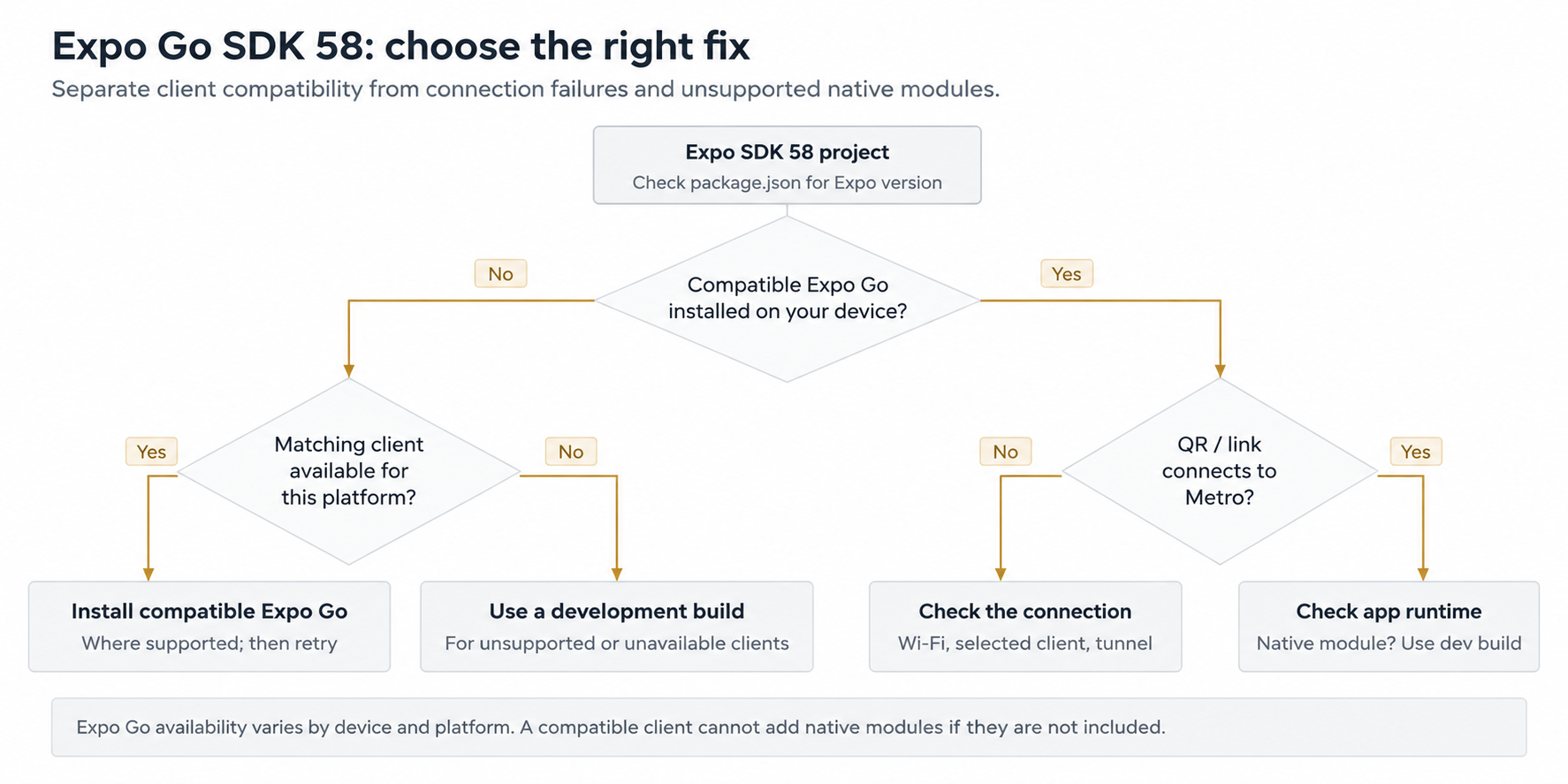
A client version mismatch, a failed Metro connection, and a missing native module each require a different fix.
From the project root, inspect your expo package, check the config, and ask Expo's doctor for compatibility information:
npm ls expo react-native
npx expo-doctor@latest
npx expo start
The version of the expo dependency is the first clue. If app.json or app config still has an explicit sdkVersion, remove it unless you have a specific reason to maintain it, or ensure it matches the installed SDK; otherwise it can create a misleading compatibility result. If the project reports dependency drift, npx expo install --fix is the documented way to align Expo-managed package versions. But do not apply that command just because a QR scanner had trouble opening a URL.
Do not confuse the Expo SDK version with the iOS/Android operating-system version or the version shown on a development build's splash screen. An installed client contains native code built for particular dependencies. JavaScript hot reload cannot make it acquire a native API it was never compiled with.
Check which app Expo CLI is trying to launch
Expo CLI may prefer a development build when expo-dev-client is installed in the project. That can make a QR code appear to open the wrong app even though Metro itself is healthy. Force the launch target deliberately for one test instead of repeatedly installing packages. The flags below choose the client; they do not make the installed client compatible with an arbitrary SDK.
npx expo start --go
# Or, when you have installed your own development client:
npx expo start --dev-client
The interactive CLI can also switch its launch target. If you have both Expo Go and a custom development build installed, record which one opened the link and whether it is built for the current SDK. A native-feature error that appears only in Expo Go usually means the fixed Expo Go binary does not contain your module. The same error in a development build may instead mean that your custom binary has not been rebuilt since the dependency changed.
Choose the correct client for your device
| Where you are running | What to try | Important limitation |
|---|---|---|
| Physical Android device | Install a compatible Expo Go build if available from Expo's supported download paths, or use a development build | Match the project's SDK and the client release |
| Android emulator | Choose the relevant SDK/version at expo.dev/go | Still cannot use native libraries excluded from Expo Go |
| iOS simulator | Obtain a compatible Expo Go build from expo.dev/go where offered | Simulator behavior does not prove physical-iPhone support |
| Physical iPhone/iPad | Check current Expo Go release and the documented eas go / TestFlight approach; development build is often simpler | Installing arbitrary older iOS Expo Go builds from the App Store is not generally available |
| Production-style native app | Install a development build with your app's native modules | Requires a native build when those modules/configuration change |
Expo's official version-mismatch page explains that a compatible Expo Go build may be selected via expo.dev/go for Android devices, emulators, and iOS simulators. For physical iPhones and iPads, Expo documents an eas go/TestFlight route for newer SDKs that requires Apple Developer Program membership and compatible distribution setup; it is not an ordinary App Store installation. That is more involved than clicking a download link and should not be represented as a universal fix.
If you only want to try an SDK 58 sample and the store Expo Go version does not support it yet, Expo's release notes recommend creating an SDK 58 app with npx create-expo-app --template default@sdk-58 and using a development build. The template changes the project version; it does not update the Expo Go binary already installed on the phone.
Physical iPhones need a different installation plan
Android, Android emulators and the iOS simulator can often install a compatible Expo Go version from Expo’s version-specific download flow. A physical iPhone is different: iOS does not generally allow arbitrary older Expo Go store builds. Expo’s current mismatch documentation describes an eas go TestFlight distribution path for newer SDKs, subject to Apple Developer Program membership and the supported SDK. A custom development build is often a better choice for a production application.
Do not follow an old blog post that says “install any Expo Go version from the App Store” and assume that instruction works on a real iPhone. Check the device type first, then Expo’s current distribution guidance. The SDK 58 release announcement described store availability as forthcoming; that statement is a publication-time snapshot, not a reliable indicator of what a particular store currently offers.
When Expo Go reports a version mismatch
A version mismatch happens when the client and the project require different SDK/runtime combinations. The first repair is to align the project SDK and the compatible client, not to erase caches. If the error survives an apparently matching client, check whether the project's config includes a stale SDK declaration and whether expo-doctor reports mismatched packages.
A separate problem appears when a package uses native functionality unavailable in Expo Go. In that case, Expo Go may launch but the feature fails or the client refuses to run it. Upgrading the SDK will not add your library to the official Expo Go app. Build a custom development client that includes the native dependency.
The QR code can also fail because the phone cannot reach the Metro address. If the SDK versions match but the project never connects, verify the address and network before touching dependencies. A failed tunnel and an incompatible Expo Go build need different repairs.
Distinguish a bad URL from a blocked network
A scan can succeed while the device is unable to reach the development server. Look at the host and port in the link: a private 192.168.x.x address is normally reachable only from the right local network, not from a phone on cellular data. Check whether the laptop firewall allows the connection, whether the devices are on the same Wi-Fi, and whether guest Wi-Fi isolates clients. Corporate VPNs and captive portals can also interfere with discovery. Try an emulator on the host machine to separate a network problem from a project problem.
Use tunnel mode when local connectivity is restricted, but remember that tunnel traffic can be slower and that SDK 58 tunnel startup may require an Expo account sign-in. If tunnel works while LAN does not, focus on reachability and network policy. If both reach Metro but the client reports an SDK mismatch, return to the SDK/client compatibility check. Clearing Metro’s cache is only useful when you have evidence of stale bundler state; it is not a network diagnostic.
QR code scans but the app does not open
Start the development server from the project directory, with the client you actually intend to use. Check that the server displays a reachable address and that the phone and computer can communicate on the selected connection mode. If they are on networks that block local discovery, you can try Expo's tunnel mode:
npx expo start
# For restricted local networks, where appropriate:
npx expo start --tunnel
SDK 58's new tunnel implementation requires an Expo account login. Sign in with expo login if tunnel startup reports an authentication requirement. A tunnel can fix reachability but cannot fix an incompatible Expo Go SDK or a missing native module. Do not tunnel sensitive local services merely to make a demo work without understanding what the endpoint exposes.
Expo SDK 58 also updated the launch URL contract. New links may carry a URL-encoded __expo_url parameter, while older expo-development-client/?url=... links remain supported for compatibility. This matters if you copy launch links into scripts or bug reports: a new query parameter is not automatically a broken QR code.
For a shareable, non-sensitive sample link you can use Yoryantra's URL Query Params Parser to inspect the raw and decoded values: Yoryantra URL Query Params Parser. It parses a URL; it cannot determine whether the application is installed, whether the Metro endpoint is reachable, or whether the runtime contains the required native modules. Never paste signed or token-bearing links into public issues.
Inspect SDK 58 launch URLs without rewriting them
SDK 58 added reserved launcher parameters prefixed _expo, including __expo_url for the encoded project or update address. Expo strips those launcher settings before application route handling, so a missing __expo_url in your screen’s route parameters is expected. The older expo-development-client/?url=... shape remains supported for backward compatibility. If a copied URL appears strange, decode it first and check its destination rather than deleting the new parameters.
myapp://?__expo_url=https%3A%2F%2Fexample.test%2Fmanifest
The example uses a made-up scheme and host. Real launch links may carry internal hosts or identifiers, so sanitize them before sharing. If your app handles deep links, test an ordinary application route separately from a launcher URL: opening Metro and navigating inside the application are different behaviors. Yoryantra’s URL parser can inspect the encoding but cannot validate the installed app, its scheme registration or connectivity.
When to stop trying Expo Go and build your own client
If your app depends on native code or app-specific native configuration, use a development build. It is your own testing client rather than Expo's fixed set of included native libraries. A typical cloud-build route for a configured EAS project is:
npx expo install expo-dev-client
# Requires EAS project setup and appropriate build credentials
# Confirm the development profile exists in eas.json
eas build --platform android --profile development
Install the resulting build on the intended test device, then start Metro for the development client rather than trying to open the store's Expo Go app. If you can build locally with Android Studio or Xcode, npx expo run:android or npx expo run:ios are alternatives. The setup costs more than scanning a QR code, but it lets you test the exact native stack your app will ship.
After adding or upgrading native dependencies, rebuild that development client. A new JavaScript bundle alone does not update the compiled native side. If the development build launches but still cannot connect to Metro, return to the networking checks rather than repeating the dependency upgrade.
A quick two-device isolation test
Consider a project using SDK 58. The Android emulator opens it through a compatible Expo Go build, but a physical iPhone reports an incompatibility error. Because the JavaScript bundle succeeds on the emulator, rewriting the app’s screens is a poor first move. Compare the iPhone’s Expo Go distribution path with Expo’s supported device-specific options and install a suitable client. If a development build runs on the iPhone but crashes when a native package loads, save the native crash log and check whether that package was included at build time.
A second case looks similar but has a different cause: both phone and emulator show the start screen, then the phone cannot fetch updates while connected to guest Wi-Fi. That points to network restrictions or an incorrect reachable server address. Identifying the last successful stage—QR scanned, client launched, manifest fetched, bundle loaded, native module executed—usually narrows the repair much faster than changing the SDK version again.
Match the error to the next check
| You see | Likely layer | Next useful action |
|---|---|---|
| “Project is incompatible with this version of Expo Go” | Client SDK vs project SDK | Check installed client release and expo dependency; follow Expo version-mismatch guidance |
| QR scans, app stays blank or cannot reach server | Network / launch URL | Verify Metro address, device connectivity and tunnel login |
| Works in Expo Go until a native library runs | Native runtime capabilities | Create a development build including the library |
| Development build opens but native feature is missing | Outdated compiled client | Rebuild and reinstall the development binary |
Deep link contains unexpected __expo_ parameters | SDK 58 launcher metadata | Inspect link safely; distinguish launcher params from app route params |
| Works on simulator but not physical iPhone | Different client availability or device prerequisites | Check physical-device distribution path and native build requirements |
If expo-doctor, TypeScript or the native build is already failing, follow Expo SDK 58 upgrade and EAS build troubleshooting first. Once the project builds, return to the installed Expo Go version, launch URL and network connection. An incompatible testing client will not be repaired by changing the application code.
After the SDK, client version and Metro connection agree, try the failing screen again. If it still fails on a native call, check whether that module was compiled into the client. Expo Go cannot load arbitrary native code simply because the JavaScript package is installed.