
You update expo to SDK 58 and npm finishes installing. Then TypeScript rejects an import that worked yesterday, or the EAS build fails while your app still runs locally. The dependency update succeeded, but the upgrade is not finished. SDK 58, released on 15 October 2026, includes React Native 0.88 and changes that reach into types, native projects and Expo Router. An outdated development build or a package with incompatible peer requirements can produce similar symptoms. A successful package install does not prove an iOS or Android binary can be built.
Start with the first failing stage instead of changing versions again. An npm dependency conflict needs a different fix from an EAS signing failure; clearing Metro will not repair an import removed from React Native. Make the upgrade on a reversible branch and test each layer separately. If the only error is “project is incompatible with this version of Expo Go,” check the Expo Go SDK 58 compatibility and QR troubleshooting steps rather than rewriting the app's dependency tree.
Record the starting point before changing packages
Create a branch or commit, capture your working lockfile, and note whether this is a managed project using Continuous Native Generation (CNG) or a project where ios/ and android/ contain maintained custom code. Then run these checks from the project root:
node --version
npm --version
npm ls expo react react-native expo-router
npx expo-doctor
Expo SDK 58 requires supported recent Node versions: Node 22.13 or newer on the 22 line, Node 24.3 or newer on the 24 line, or Node 26 and later. Odd-numbered Node releases such as 23 and 25 are unsupported. Do not assume the Node version on a local laptop matches the version installed in an EAS build image or GitHub Actions job. If the app already fails expo-doctor before upgrading, record that baseline; a pre-existing dependency problem should not automatically be blamed on SDK 58.
If you use pnpm, Yarn or Bun, use its matching installation commands instead of mixing package managers. A committed lockfile matters: deleting it blindly can change unrelated dependencies and make a regression harder to reproduce.
Keep a reproducible before-and-after dependency record
Before changing packages, save the outputs of npm ls and expo-doctor with the commit that represents SDK 57. After the upgrade, compare the lockfile diff instead of relying on the final “added packages” message. An unexpectedly broad lockfile change can come from a loose version range, a package-manager switch or a dependency resolution that changed for unrelated reasons. Keep the failed installation log too: the first peer-requirement mismatch is often more useful than the last npm error line.
git status --short
git diff -- package.json package-lock.json
npm ls expo react react-native expo-router
If CI runs npm ci, it installs from the lockfile rather than resolving new package versions for you. Commit the updated lockfile and reproduce that installation locally. A green npm install on one machine and a red npm ci in GitHub Actions can point to an uncommitted or inconsistent lockfile, not a broken Expo SDK. Do not commit credentials, EAS tokens or copied production environment files with the investigation.
Upgrade the packages Expo can match
For an npm-based SDK 57 project, Expo's documented upgrade sequence is:
npm install expo@^58.0.0
npx expo install --fix
npx expo-doctor
expo install --fix aligns packages that Expo knows need compatible versions; it cannot guarantee that every third-party native module supports React Native 0.88. If npm install reports a peer-dependency conflict, read the package names in the first meaningful error block. Check which dependency requests the older React Native or React version and whether that maintainer has published a compatible release. Repeatedly using --force or --legacy-peer-deps may make npm stop complaining without making the native code compile.
expo-doctor can identify common project mismatches. It cannot compile a native module or exercise an application screen. Follow it with the project's type check, tests and the platform builds you actually ship; a clean dependency report can still leave you with a native compiler error.
Isolate the package behind an npm peer conflict
Suppose the installer reports that an existing native-module package expects an older React Native range. Identify that package and inspect its published peer dependency requirements rather than guessing a compatible version. The following commands use a placeholder package name; substitute the actual package from your error output.
npm view your-native-package peerDependencies --json
npm view your-native-package versions --json
Then check the package maintainer’s release notes and open issues for React Native 0.88 support. A successful forced installation only proves that the package manager accepted an inconsistent dependency graph. It does not establish that the module compiles on Android or iOS. If no compatible version exists, decide whether to postpone the upgrade, replace the library or maintain a documented temporary patch. Make that decision before regenerating native projects, where the resulting errors can be harder to trace.
TypeScript now rejects imports that previously slipped through
React Native 0.87 made its Strict TypeScript API the default, and SDK 58 inherits that behavior. Deep imports such as react-native/Libraries/... may now fail type-checking. Some ref types also use instance types such as ViewInstance and TextInputInstance. These are code-migration problems, not errors you fix by clearing Metro's cache.
npx tsc --noEmit
# Search source and maintained local packages for private imports:
rg 'react-native/Libraries/' . --glob '!node_modules/**'
If a dependency imports private React Native internals, check for a maintained update before patching your own application around it. Expo documents a temporary TypeScript opt-out through customConditions, but it is meant as a migration bridge and is slated for removal after React Native 0.89. The durable fix is to move to public APIs and updated types, not to hide every new compiler diagnostic.
Other removed APIs can cause a build that passes TypeScript to fail at runtime. InteractionManager was removed (use requestIdleCallback where its behavior suits the task); the Touchable root export and some deprecated StatusBar props were also removed. Examine the actual stack trace and the dependency that calls the API before making a substitution. A request-idle callback is not necessarily equivalent to all earlier scheduling behavior.
Check who owns the native project before regenerating it
If your project uses CNG and ios/ and android/ were generated entirely from Expo config, regenerate them as part of the SDK change. Back up and confirm there are no manual edits first. Expo's upgrade guide allows deleting the previously generated native directories so they can be recreated during prebuild or EAS Build.
If those folders contain maintained native changes, do not delete them. Apply the Native Project Upgrade Helper's relevant changes and, for an iOS project, update CocoaPods with npx pod-install. When the application includes expo-dev-client, rebuild the development binary after upgrading: a JavaScript reload cannot change native modules compiled into an earlier binary.
# Android example after dependencies and native config have been reviewed
npx expo run:android
# For an EAS development build, after checking eas.json:
eas build --platform android --profile development
A successful JavaScript bundle does not establish that Android Gradle, iOS compilation or signing is healthy. On iOS 27, projects that customize AppDelegate.swift also need to examine the scene-based lifecycle migration. On Android, SDK 58 enables R8 shrinking/optimization in release builds by default. A library relying on reflection can therefore work in a debug build yet fail in release; investigate the R8 rules or the library's keep rules before disabling optimization as a permanent fix.
Check environment selection before blaming native dependencies
SDK 58 changed how Expo commands choose their environment mode: CLI commands set NODE_ENV according to the command and do not use an arbitrary NODE_ENV value you supply to switch configurations. Development servers normally use development mode, while export uses production mode. A team that previously ran NODE_ENV=production npx expo start to imitate a release build can now load different environment files from what it expected. Compare actual config resolution and build-profile environments instead of assuming a familiar shell variable still controls the result.
Treat EXPO_PUBLIC_ variables as public client-side configuration, not a secure place to hide credentials. If a feature works locally but disappears in EAS, compare variable names, scopes and build-profile selection without pasting secret values into a validator or issue tracker. A syntactically correct eas.json cannot tell you whether the correct environment was selected. Expo’s environment-variable documentation is the source of truth for SDK-specific mode behavior.
Read the first failing stage in the EAS log
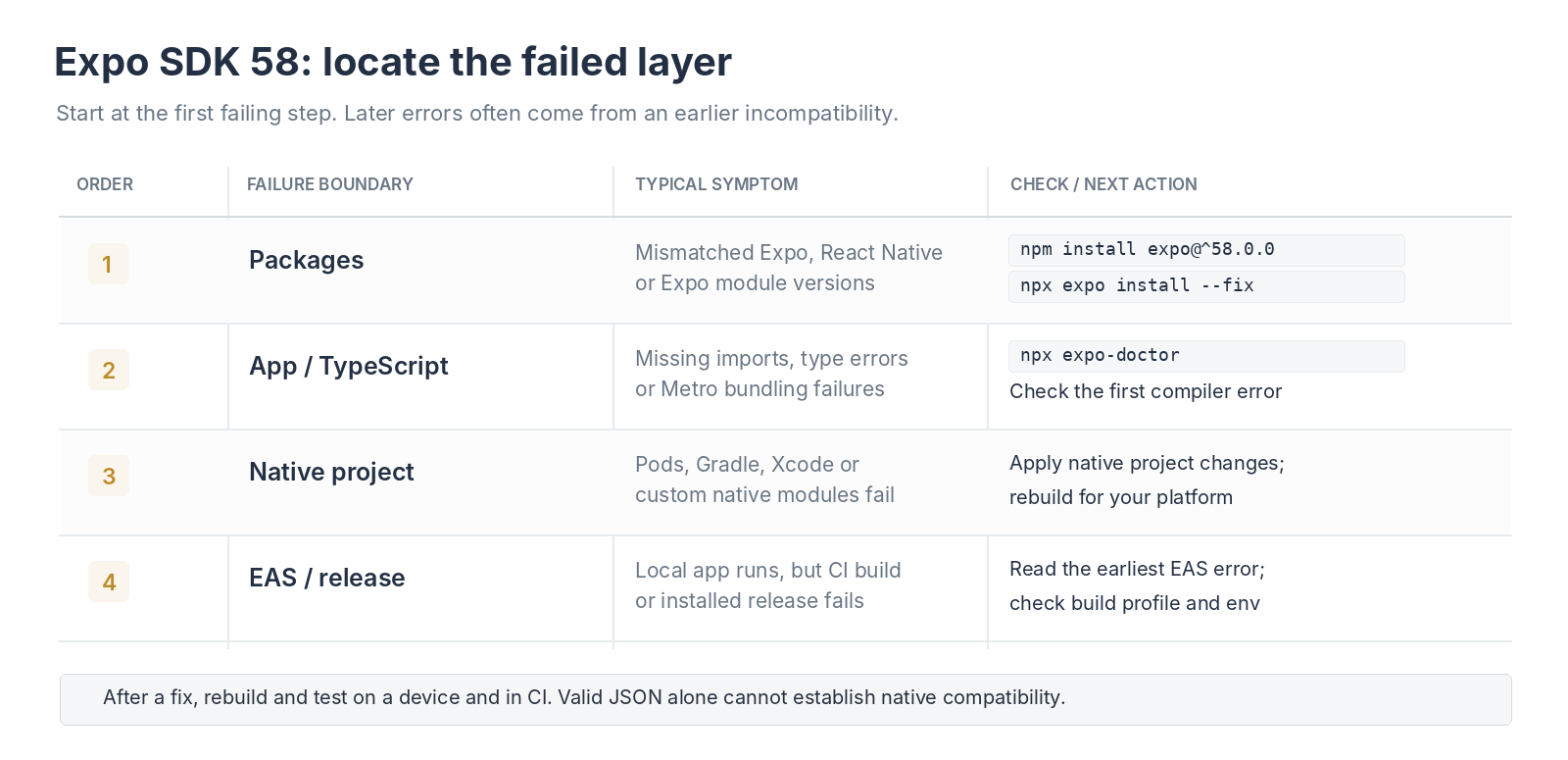
Check the layer that failed: package alignment, type and bundle checks, native compilation, or EAS release validation.
When EAS fails, start from the earliest meaningful error in its logs. Classify it before editing anything:
| Symptom | Check first | Avoid this shortcut |
|---|---|---|
ERESOLVE / dependency conflicts | Incompatible peer requirements and lockfile | Repeated blind --force installs |
Cannot find module / Metro resolution | Actual import path, package installation, Metro config | Clearing all caches without finding the import |
| Type errors after upgrade | Deep React Native imports and changed ref types | Disabling TypeScript checks |
| iOS native compile or CocoaPods error | Native project ownership, Pod installation, Xcode/iOS changes | Deleting a hand-maintained ios/ folder |
| Android release-only crash | R8 shrinking, reflection, native library compatibility | Assuming a debug run proves release is safe |
| Installed app still uses old native code | Development binary version and native rebuild | Restarting Metro repeatedly |
Compare the failing stage with the local setup. Check the Node version in CI, the committed lockfile used by npm ci, the EAS build profile and which development binary is installed on the test device. A local debug build passing does not rule out a release-only R8 failure or cloud signing problem. Pinning random versions usually obscures the original error.
Separate a failed compilation from an installed-app regression
A release build can finish successfully and still fail once installed. For Android, SDK 58 enables R8 optimization by default in release builds; an SDK or library that uses reflection may need specific keep rules. Confirm the crash on a release-like build and collect the device log before disabling minification. For iOS, projects that customize the app delegate or startup lifecycle need to test cold launch, universal links and permission flows after the scene-lifecycle migration. A development build exercising one screen is not an adequate release test.
Record which build actually produced the bug: platform, build profile, SDK, commit, device and first stack trace. A release-only failure should not automatically send you back to npm dependency resolution. If the native build succeeds but an over-the-air update fails on an older installed binary, investigate runtime compatibility and whether a native rebuild was required; JavaScript updates cannot add native code that is absent from that binary.
SDK 58 can also change web output and router behavior
Expo Router projects on SDK 58 default to web.output: "server" when web output is unspecified. That can change how your site renders and deploys compared with a previously static-exported project. Custom navigators and imports from expo-router/react-navigation also require review. If the app breaks only on web after upgrading, inspect Router migration notes and the deployed hosting setup instead of looking only for React Native errors.
If your project ships web pages, compare the output and hosting configuration from before the upgrade with the new build. If it is mobile-only, changes to web output are not the place to start investigating an Android or iOS failure.
Use a small regression matrix before merging the upgrade
Test at least one clean installation, one return visit with existing app data, a navigation path, and the native feature most likely to be affected. If you publish on both mobile platforms, verify both; Android success does not establish iOS scene-lifecycle compatibility. For applications with a web target, check whether the deployment now expects a server renderer rather than the old static output. A reversible upgrade includes both a known-good SDK 57 commit and a plan for rolling back the release if a production-only failure appears.
Write down the remaining exception when a workaround is temporary—for example, a package still waiting for React Native 0.88 support. That turns an obscure version pin into a deliberate dependency decision and makes later cleanup possible. Avoid promising that every SDK 57 application can be migrated by running the three package commands alone.
Check configuration syntax before chasing build errors
If you edited package.json, app.json or eas.json manually and the CLI reports a parsing error, run the relevant content through Yoryantra's JSON Validator: Yoryantra JSON Validator. Valid JSON only rules out syntax errors; it does not establish a valid Expo configuration or compatible packages. For a build that changes behavior between local and CI, compare sanitized .env snapshots with the Environment Variable Diff Checker: Yoryantra Environment Variable Diff Checker. Then check the actual EAS environment-variable scopes and build-profile configuration. Keep credentials and private values out of shared troubleshooting material.
Install a fresh development build and test one ordinary screen, navigation and a native feature the app relies on. Repeat the critical path in a release configuration where practical. If anything fails, save the first relevant error and the build profile that produced it before changing another dependency.